Time it
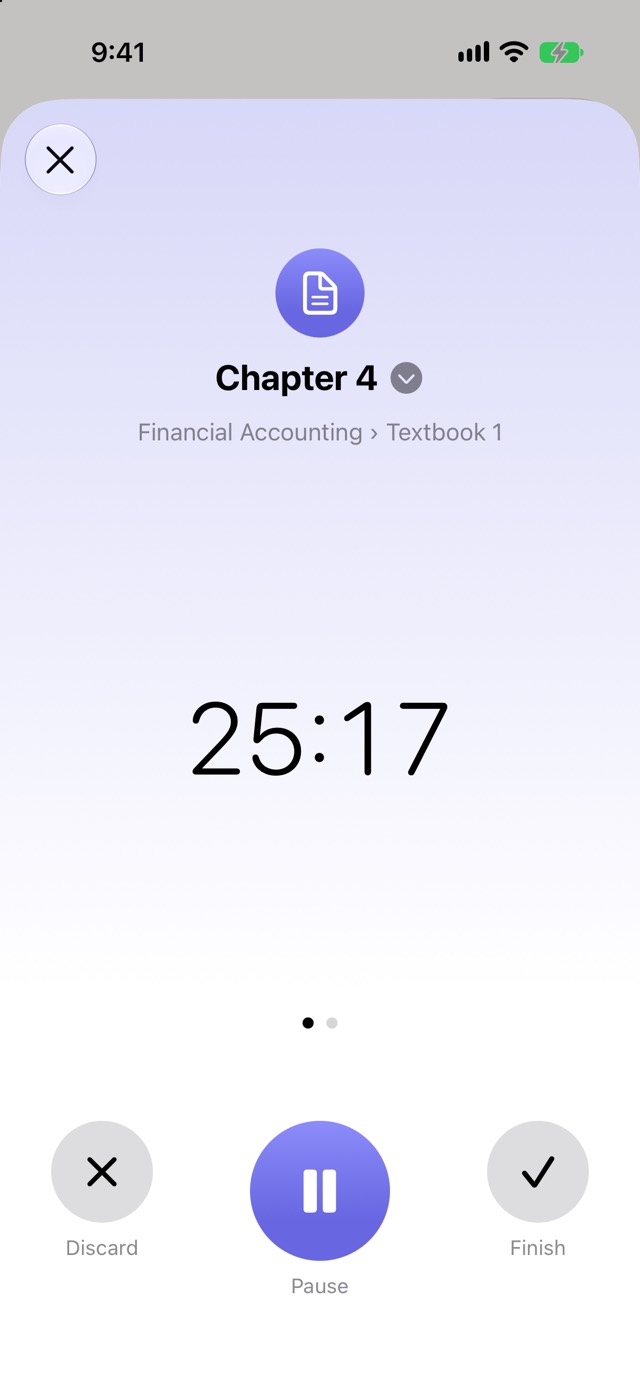
Tap Start Studying to time your session and see the elapsed time on the Lock Screen and in the Dynamic Island. With the timer, you'll get a heads-up when time's up.
 STUDY
Track study time and progress
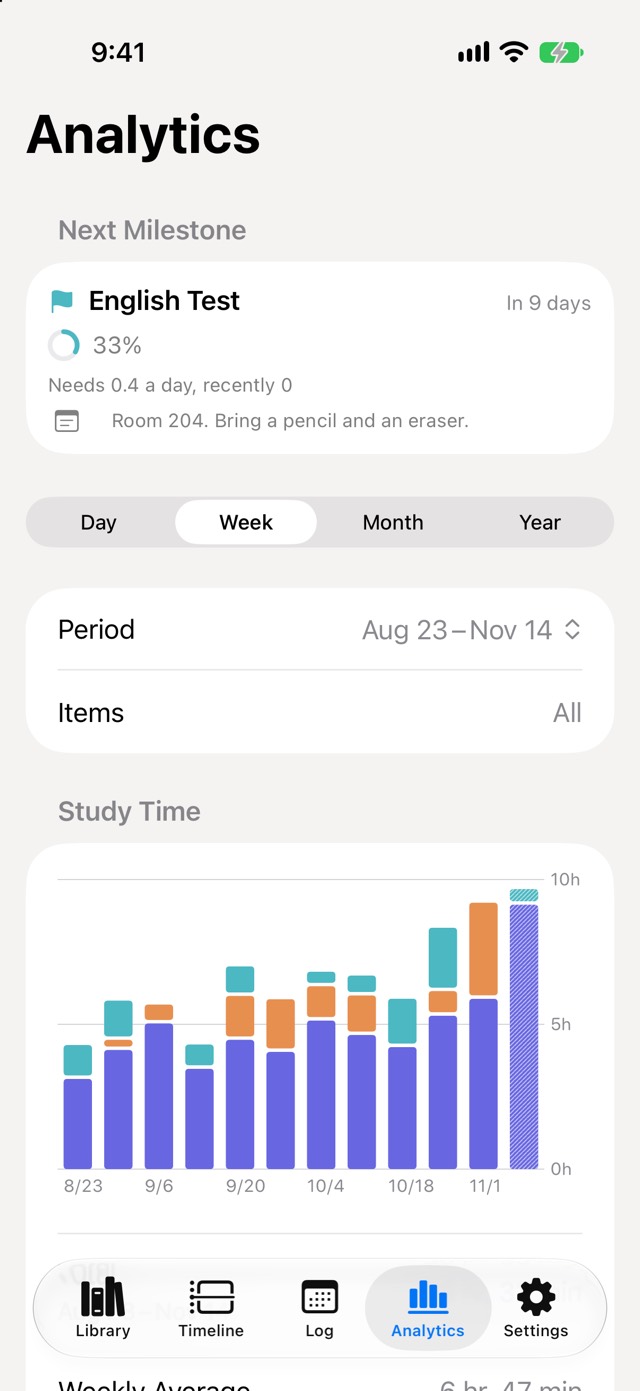
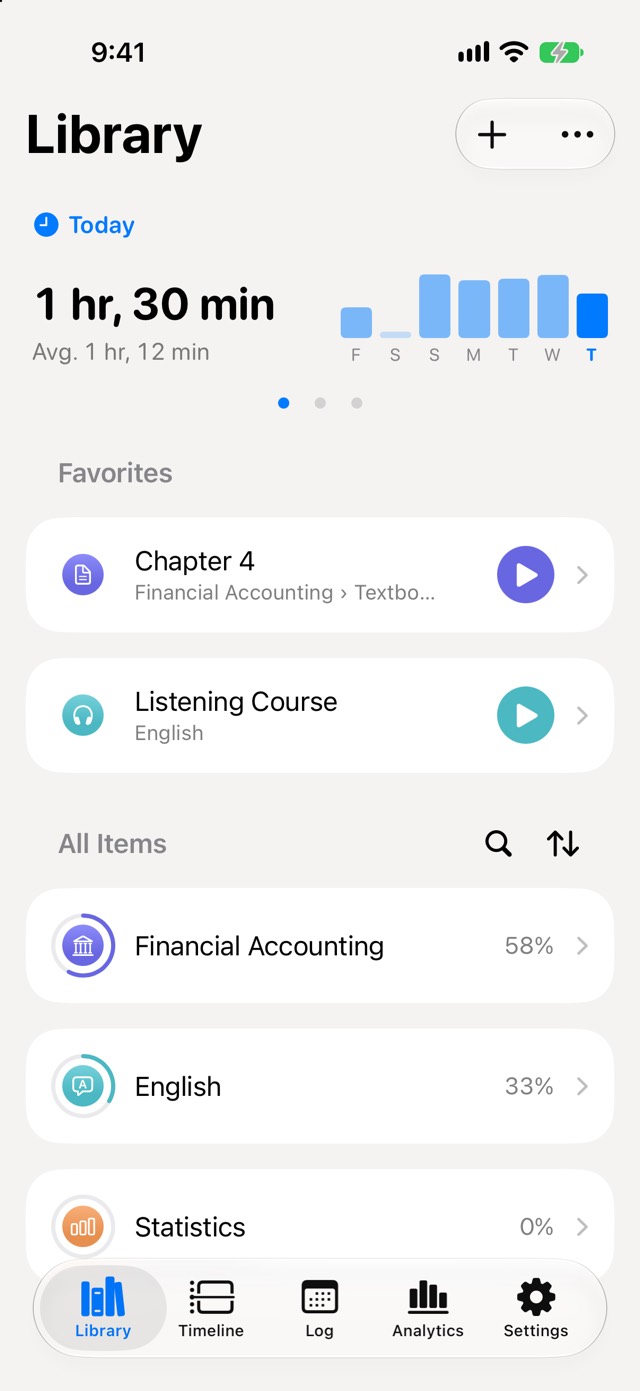
Time your study for each material and see your progress at a glance from completed credits and completion. Plus the pace you need before your exam. No account, no ads, no tracking.
Tap Start Studying to time your session and see the elapsed time on the Lock Screen and in the Dynamic Island. With the timer, you'll get a heads-up when time's up.
Nest materials, chapters, and lessons as deep as you like. Each item's screen shows progress, credits, and study time at a glance.
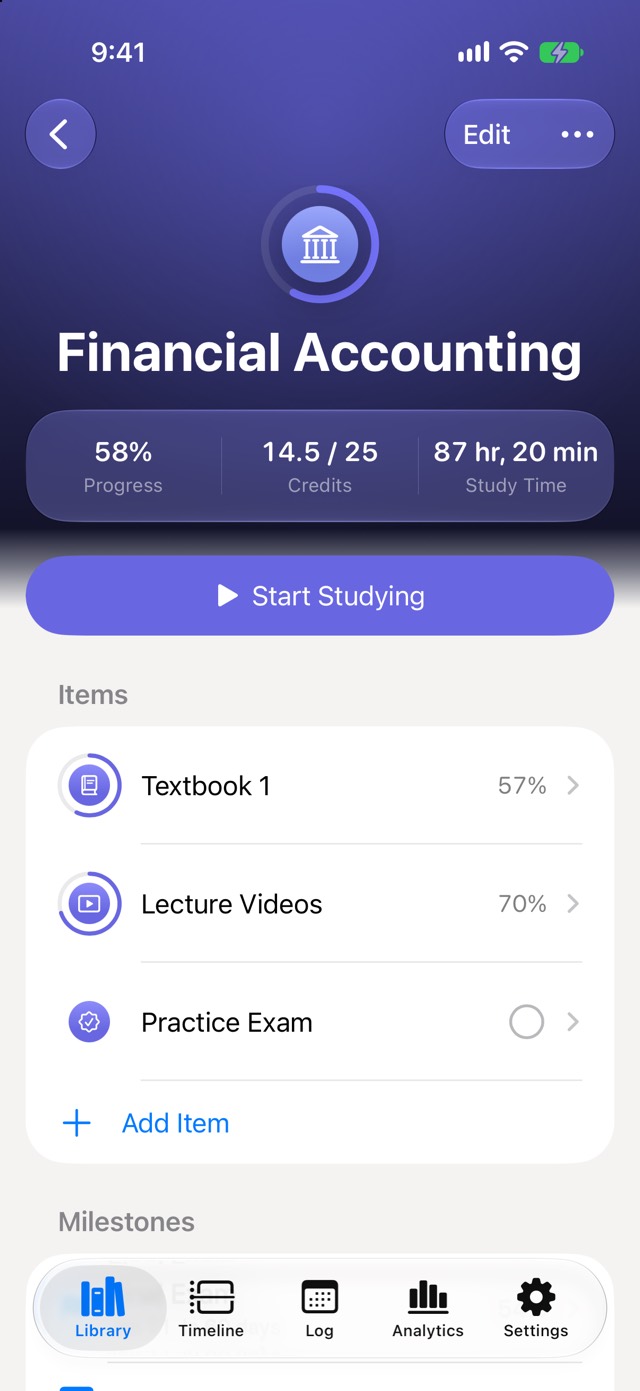
Break materials into chapters or lessons and mark them complete when you're done. Your overall progress follows from the credits you've finished.
Set a due date such as an exam day to compare how much you need to do each day with your recent pace.
Study time trends, time by item, a calendar, and a journal let you look back on everything you've built up.
Your data is stored only on your iPhone. iPhone backups (iCloud Backup or a backup to your computer) include the app's data, so it comes back when you move to a new iPhone from a backup. If you delete the app without a backup, your data is deleted too.
In the Settings app, go to Notifications > STUDY and check that notifications are allowed. The notification arrives when a timer (counting down from a set time) reaches zero.
In the Settings app, go to STUDY and check that Live Activities is turned on.
In the app, go to Settings > Day Boundary to choose when a new day starts (4 AM by default). Study started before this time counts toward the previous day.
Time your study for each material and see your progress at a glance from completed credits and completion. Plus the pace you need before your exam. No account, no ads, no tracking.